Draw.IO guide
Getting started
Drawing diagrams in DrawIO/ diagrams.net is simple, but to make things easy, we have created a library that contains all the supported shapes with appropriate names as well as a plugin to help with tasks that are not supported natively in DrawIO. Before continuing this document make sure you have basic control in DrawIO!
Installing the library
Download the file “DrawIO library” from the download page and store it on your computer. Open DrawIO (desktop or web), click Open Library:
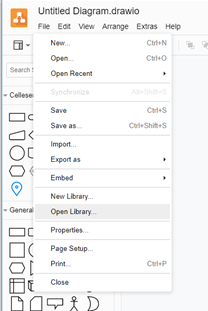
In the dialog type the full path of the file you downloaded. After installing the library you should see the new library:
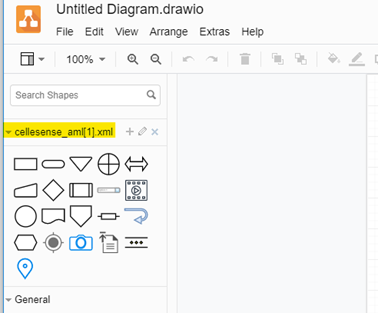
The name may be different showing another number in the brackets.
Installing the plug-in
Start by opening the plug-in dialog:
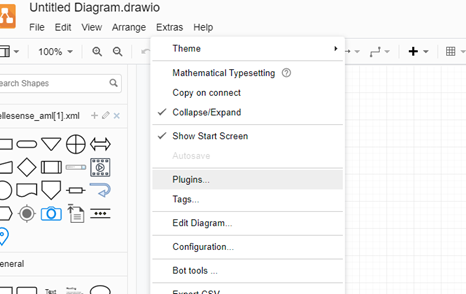
Before starting remove old versions of the plugin (if you see one):
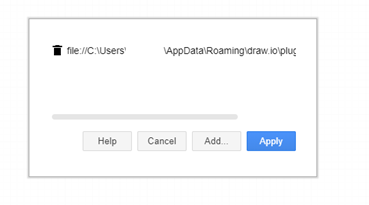
Click on the  , then restart DrawIO.
Download the plug-in from the download page and store it on your computer.
Open DrawIO click Plugins then add the plugin by clicking Add button, in the dialog click “select File”:
, then restart DrawIO.
Download the plug-in from the download page and store it on your computer.
Open DrawIO click Plugins then add the plugin by clicking Add button, in the dialog click “select File”:
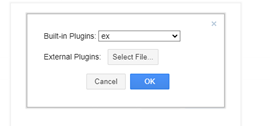
Then enter the address: In the dialog type/select the full path of the file you downloded. Click “Apply” and restart DrawIO.
Enable the plugin
Draw.IO will not run plugins unless the --enable-plugins command line option is specified.
Thus to run Draw.IO you will need to write something like C:\Program Files\draw.io\draw.io.exe --enable-plugins "%1".
to simplify things you can change the association in windows, by executing the following in CMD with admin permissions:
assoc .drawio="draw.io Diagram"
ftype "draw.io Diagram"=C:\Program Files\draw.io\draw.io.exe --enable-plugins "%1"
This will open Draw.IO with plugins enabled when you double click a Draw.IO file
IMPORTANT
If you get an error “File already exists”, you may need to delete the old version of the plug-in manually. With file-explorer, goto the location:
C:\Users\[your user name]\AppData\Roaming\draw.io\plugins
And delete the old file
Multilingual diagrams
The plug in helps you to work with multiple languages on a single diagram. If you don’t plan to use multilingual schemas, you can skip this section. We use the cell data in DrawIO to store the additional languages, here is an example of how the data looks for a single shape:
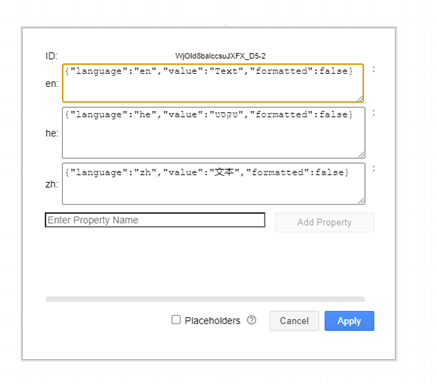
Thus, for each cell (shape or edge) in DrawIO we can store this data. Of course the plug in will provide a better interface via the “Rich Edit“ menu entry in the “Extras” menu. When the compiler reads the diagram it will take the corresponding text for each language and if the is no text in the language slot it will use the physical text in the cells.
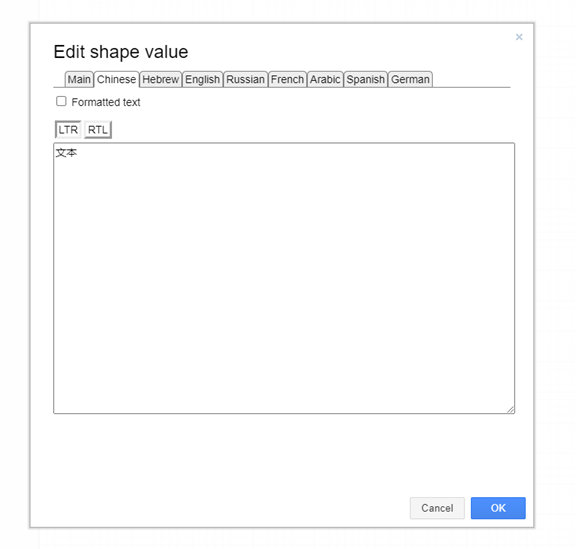
It is important to understand that for each cell there is always the viewable text (i.e. the text you see in the schema). In the “rich edit” dialog this is marked as “Main”. You can use the data-wizard to copy all the texts from a specific language for all the cells from the selected language to the viewable text (i.e. Main) and you can also copy the main and override the text for a specific language.
Typical workflow
You start with a single language let’s say English, and set the texts for all the cells. When you finished you use the Data-Wizard to copy the text from all the cells into the “English” storage simply Using the plugin “Data wizard” copy all the texts to “English” language slot:
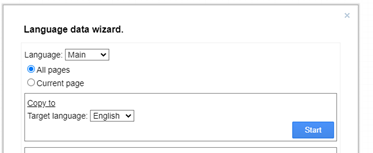
Now you can go for each cell and click “Rich Edit” and add the text in the next language you need, or edit the cell text directly and replace the English with let’s say French then use the wizard to store all the texts in the French language slot. Another option will be to use the export & import and edit the texts outside DrawIO for example in Excel, the drawback will be that if you used formatting, you will see HTML tags in Excel.
Using the plug in extras
After installing the plugin, you will see new options in the “Extras” menu (marked here in yellow):
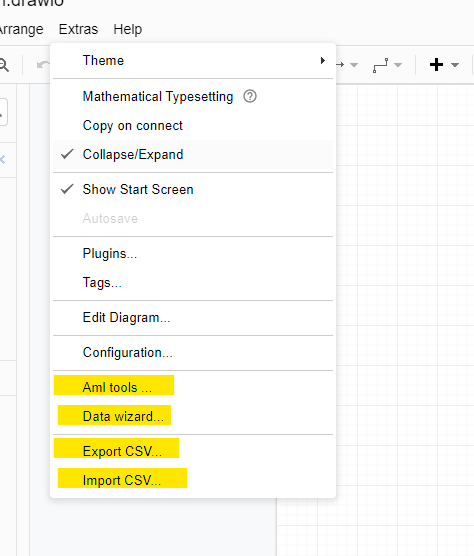
The following sections describe the options
Aml Tools
Clicking on “Aml Tools…” opens the following dialog
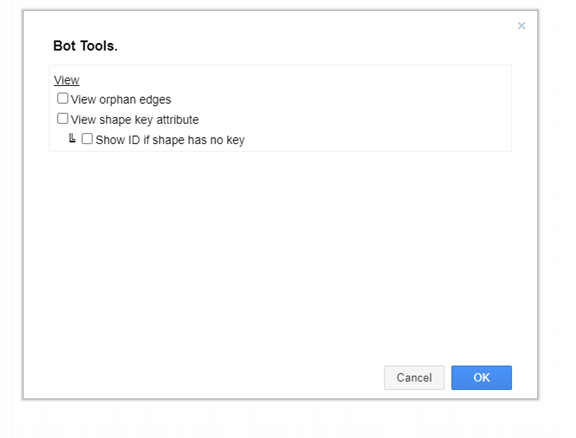
Turn on “View orphan edges” to find edges (lines) that are not connected (glued) to a shape. When on drawio will display a red rectangle on all unconnected edged, see the following example:
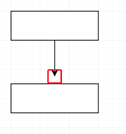
Don’t leave this option on when not required as the red rectangles can interfere with selecting the edge end point.
Export CSV
Use this dialog to export the text content of the diagram, this is very helpful if you want to edit the texts in another program like Excel.
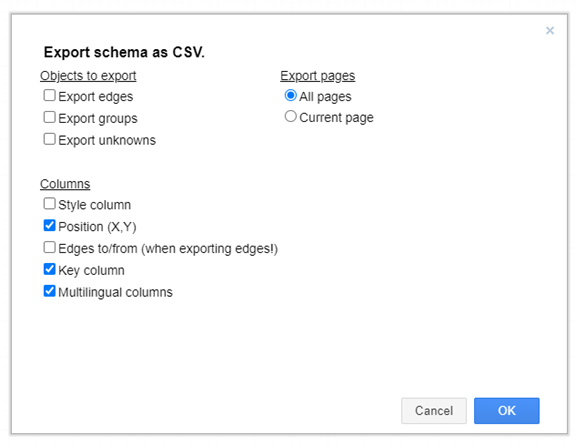
When exporting select the columns and element types that you plan to change or view.
| item | Description |
|---|---|
| Style Column | The inner DrawIO style of the column, Export this column if you have a good knowledge in CSS and the internals of DrawIO |
| Position | Location of the element |
| Key column | See explanation about the key attribute the user guide |
| Multilingual | Exports a column for each supported language, check this if you diagram is multi lingual. See the “Rich edit” menu in this guide. |
Here is an example export:
Page,ID,Type,X,Y,Key,Value,Formatted,Source,Target,Style
Page-1,WjOId8balccsuJXFX_D5-1,textOut,240,200,,Some text,true,,,rounded=0;whiteSpace=wrap;html=1;
Import CSV
Will open a file load dialog, select a CSV file that you exported and worked on, keeping the Page & ID columns without change. The import will override the text of the shape in the diagram with the texts from the CSV. You can import only parts of the exported CSV as long as you keep the headers & the values of Page & ID columns.